This page explains what to change in a direct Payment API 2.0 integration for CCD2. Only make these changes for in-scope transactions: consumer (B2C) purchases with an in-scope payment method. The rest of your integration stays the same.
The API sequence are the same for online shop, MOTO and point of sale. Only the buyers or staff interface and SECCI delivery differ. See sales channel notes below for details.
Before you start
In your checkout or staff interface:
- Do not pre-select an in-scope Ratepay payment method, or give it disproportionate emphasis than other payment methods.
- Show all available payment methods from the start, not only after a Ratepay decline.
- Let the buyer choose the payment method; staff must not choose a credit method without the buyer's instruction.
The broader advertising requirements, including relevant costs and risks outside checkout, are explained on Direct API: Your CCD2 responsibilities. Have your legal team approve the final buyer-facing wording.
Before you continue, check that:
- All available payment methods are visible from the start
- No in-scope method is pre-selected or emphasised
- The buyer makes the choice.
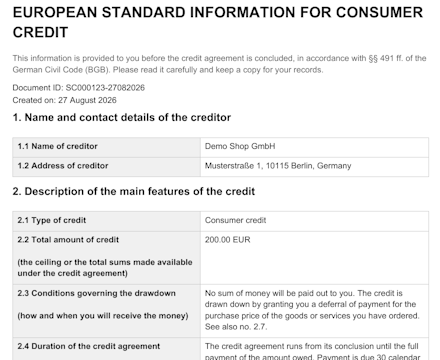
Before the payment is submitted, the buyer must be informed they will receive the Standard European Consumer Credit Information (SECCI) and the merchant must trigger the delivery of SECCI.
Choose one variant:
| Automatic email delivery (recommended) | Explicit SECCI interaction | |
|---|---|---|
| Used when | The buyer's email address is already available. | When the buyer should choose how to receive SECCI, including when their email address is not yet available. |
| Notice shown | Before payment-method selection. | After an in-scope payment method is selected. |
| SECCI delivery | • Sent by email automatically when the buyer selects an in-scope method • PDF delivery offered | The buyer chooses email or PDF delivery. |
| Additional buyer interaction | None | One extra click |
Use this option when the buyer's email address is already captured and you want to reduce friction during checkout.
| Screen | Stage | Implementation Notes |
|---|---|---|
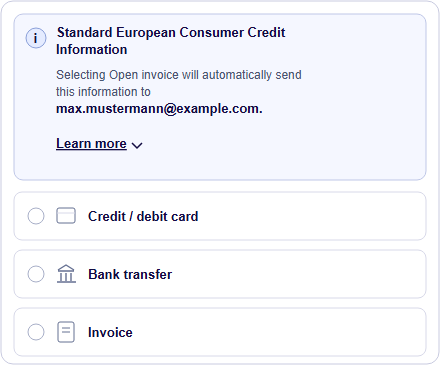 | Notice before payment-method selection | Show the SECCI notice above the payment methods. Name the in-scope methods and the buyer's email address, and keep the usual way to change the email. |
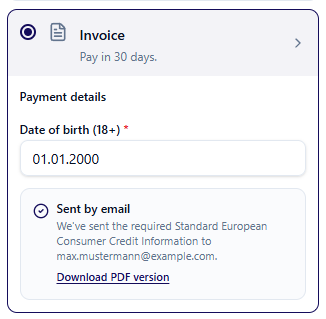 | Confirmation after successful email request | • When the buyer selects an in-scope method, your backend sends an SECCI generation request with email as delivery.method (step 3).• After a successful response, show the confirmation and offer a PDF download option as well. Otherwise, give the buyer the option to retry or download SECCI as a PDF. |
Suggested buyer-facing copy:
- Header: Standard EU Consumer Credit Info
- Text: Selecting [affected Ratepay payment methods] will automatically send this information to [buyer email].
- Expandable section: Learn more
- Learn more text:
EU consumer credit rules have changed and now require additional information for [affected Ratepay payment methods]. This information helps you understand the key credit terms before completing your purchase. Our payment partner Ratepay will use your email address solely to send it, using a third-party email delivery provider.
After successful email delivery:
- Status: Sent by email
- Text: We've sent the required Standard European Consumer Credit Information to [buyer email].
- Button: Download PDF version
Note: Show the confirmation only after the email SECCI request succeeds.
Use this when the buyer should choose the delivery method.
| Screen | Stage | Implementation notes |
|---|---|---|
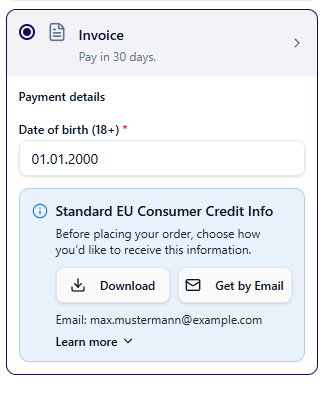 | Notice after payment-method selection | • After the buyer selects an in-scope method, show the notice with two actions: Download PDF and Get by Email. • Ask for an email address only if the buyer chooses email and you don't have one. |
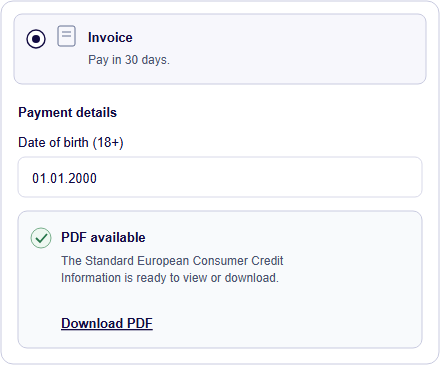 | Confirmation shown after the PDF is downloaded or the email request completes successfully | Each action triggers the matching Secci generation request from your backend (step 3). |
Suggested buyer-facing copy:
- Header: Standard EU Consumer Credit Info
- Text: Before placing your order, choose how you'd like to receive this information.
- Expandable section: Learn more
- Learn more text:
EU consumer credit rules have changed and now require additional information for this payment method. This information helps you understand the key credit terms before completing your purchase. If you choose Get by email, our payment partner Ratepay will use your email address only to send this information, using a third-party email delivery provider.
- Buttons: Download · Get by Email
After the PDF download:
- Status: Downloaded
- Text: Your Standard European Consumer Credit Information was downloaded to your device.
- Action: Back to selection
| Sales Channel | Before submitting the order, staff… |
|---|---|
| MOTO | Option 1 - If buyer has an e-mail address 1. Explains the SECCI requirement, records the buyer's email if needed 2. Triggers email delivery and check that it succeeded. Option 2 - If buyer has NO e-mail address 1. Explains the SECCI requirement, generate SECCI as a PDF, and summarize the content of the SECCI: • Identity of the provider • the total loan amount and the terms and conditions for drawing down the loan; • the term of the loan agreement; • the nominal interest rate, the annual percentage rate (APR), and the total amount to be paid; • the amount, number, and due dates of the payments; • whether or not a right of withdrawal exists. 2. The SECCI document itself must then be made available to the buyer immediately, for example through the following channels: • Customer portal / app: Made available in the customer’s personal account, provided the document can be permanently stored and downloaded there. Use the PDF download action. • By postal: Sent by postal service / printed document within your delivery of the goods without delay. Use the PDF print action for this. Note: Keep your existing approved process for obtaining and documenting the buyer's consent to share their data with Ratepay. |
| Point of sale | 1. Explains the SECCI 2. Prints the PDF and hands it to the buyer 3. Confirms the handover in the staff interface (for example, with a checkbox). 4. If email is offered, show it as a separate staff action and its result |
Before you continue, check that:
Online shop - Automatic email delivery:
- The SECCI notice appears above the payment method.
Online shop - Explicit SECCI delivery:
- The SECCI notice appears after an in-scope method is selected.
MOTO and point of sale:
- Staff sees the delivery actions before they can submit the order.
Add the new SECCI generation endpoint POST /v2/compliance/secci to your backend. Ratepay generates the document from the supplied data.
- Backend only: the request contains your OAuth token, so send it from your backend, never from the browser.
- Matching data: the basket, payment method and amount must match the
Authorize transactionrequest you send later.
| Environment | OAuth audience | SECCI endpoint |
|---|---|---|
| Integration | https://api-integration.ratepay.com/transaction/management | https://api-integration.ratepay.com/transaction/management/v2/compliance/secci |
| Production | https://api.ratepay.com/transaction/management | https://api.ratepay.com/transaction/management/v2/compliance/secci |
Request an OAuth access token with client_credentials and the environment's audience. Send Authorization: Bearer YOUR_ACCESS_TOKEN and Content-Type: application/json.
Parameters in delivery
| Parameters | Required | Notes |
|---|---|---|
method | Yes | email or pdf |
email | For method = email | The buyer's email address to which Ratepay sends the SECCI document. |
action | For method = pdf | download (online shop) or print (point of sale) |
country_code | No | The buyer's billing-address country, e.g. DE |
language | No | The language of the SECCI. Ensure it matches the language of your post-purchase communication with the buyer. |
Use for online shop, MOTO, or POS email delivery.
{
  "delivery": {
    "method": "email",
    "email": "buyer@example.com",
    "country_code": "DE",
    "language": "en"
  },
  "currency": "EUR",
  "payment_method": {
    "payment_option": "OPEN_INVOICE",
    "transfer_type": "BANK_TRANSFER"
  },
  "shop_baskets": [
    {
      "partner_shop_id": "INTEGRATION_TE_DACH",
      "shop_transaction_id": "shop-transaction-id-1234",
      "gross_amount": 200,
      "items": [
        {
          "article_number": "urban-pack",
          "category": "bags",
          "description": "Lightweight backpack with a padded laptop compartment",
          "gross_total_price": 180,
          "gross_unit_price": 180,
          "name": "Urban Pack",
          "net_total_price": 151.26,
          "net_unit_price": 151.26,
          "quantity": 1,
          "tax_rate": 19,
          "unit": "piece"
        }
      ],
      "special_items": [
        {
          "article_number": "SHIPPING_001",
          "category": "shipping",
          "description": "Standard shipping via DHL",
          "gross_total_price": 20,
          "gross_unit_price": 20,
          "name": "Shipping costs",
          "net_total_price": 16.81,
          "net_unit_price": 16.81,
          "quantity": 1,
          "tax_rate": 19,
          "unit": "shipment"
        }
      ],
      "vats": [
        {
          "net_amount": 168.07,
          "tax_amount": 31.93,
          "tax_rate": 19
        }
      ]
    }
  ]
}
Before continuing, check that:
- Your backend sends the right Secci generation request for each delivery action. The basket, payment method and amount must match the payment you'll submit.
Check for a successful response before allowing the buyer to finalize the order.
The successful email response returns an x-attestation-token as response header and a secci_id in the response body.
x-attestation-token: RETURNED_ATTESTATION_TOKEN
Content-Type: application/json
{
"result": "SUCCESS",
"secci_id": "SCCMS8BH-27092026"
}Show the confirmation with the email address.
| State | Buyer or staff interface | Payment submission |
|---|---|---|
| Pending | Show progress and prevent repeated actions. | Blocked |
| Email request successful | Confirm delivery to the shown address. | Enabled with the stored token |
| PDF provided | Make the actual PDF available in the browser or hand the printed document to the buyer. | Enabled with the stored token |
| Failed or timed out | Explain the failure and offer retry or another method. | Blocked |
| Basket, method or relevant credit terms changed | Clear the old result and request a new document. | Blocked until the new request succeeds |
If SECCI is successful:
- Store the
x-attestation-tokenvalue with the current checkout or order attempt. You need it in step 5. Thex-attestation-tokenis valid for 7 days. If it expires before the Authorize transaction request, request a SECCI again and use the new token. - If the basket or payment method changes, discard the token and request a new SECCI.
If SECCI request fails: Suggested buyer-facing copy:
- Error message: Standard European Consumer Credit Information (SECCI) is temporarily unavailable. Please try again.
- Action: Try again
Before continuing, check that:
- Each response is checked and the document reaches the buyer by the chosen method
- The attestation token is stored against the order attempt
- A SECCI delivery success message is implemented
- A SECCI delivery failure message and retry workflow is implemented
- Pending, failed and timed-out requests block payment
Keep your existing Authorize transaction request at POST /v2/transactions.
New for CCD2: Add the value from the successful SECCI response header x-attestation-token as compliance_details.attestation_token. This is part of your existing authorization request, not a new request.
{
  "compliance_details": {
    "attestation_token": "STORED_X_ATTESTATION_TOKEN"
  },
  ...
}
Matching data: the basket, payment method and amount must match the successful SECCI generation request. Otherwise Ratepay rejects the payment with HTTP status code 422:
{
    "type": "https://api.ratepay.com/transaction/management/v2/validation/unprocessable_operation",
    "ratepay_transaction_id": "RATEPAY_TRANSACTION_ID",
    "created": "2026-10-07T11:10:36.534+02:00",
    "result": "DECLINED",
    "decline": {
        "category": "UNPROCESSABLE_OPERATION",
        "reasons": [
            "COMPLIANCE_ATTESTATION_TOKEN_VALIDATION_FAILED"
        ]
    },
    "_links": {
        "self": {
            "href": "https://api-integration.ratepay.com/transaction/management/v2/transactions/RATEPAY_TRANSACTION_ID"
        }
    }
}
If anything changed, request a new SECCI.
When to allow order submission:
- Online shop: Enable order submission after a successful email SECCI request; or after the returned PDF has been provided to the buyer.
- MOTO: Complete the SECCI provision process described for the selected MOTO option in step 2 before submitting the payment.
- Point of sale: keep the submit action disabled until the email is sent, or until the PDF is printed and handed over.
Before continuing, check that:
- in-scope payments are submitted only after successful document provision, with the stored attestation-token and matching basket and payment method
When Ratepay declines a payment for credit-risk reasons under CCD2, the response will have the HTTP status code 422, with CREDIT_RISK as decline.category.
- Use the returned
decline.messagefor the buyer's language when present. - The text can contain named placeholders; match each placeholder to an entry in
linksbyrel. - Render its supplied label and URL as a link in your frontend.
Note:
- Its content differs by country and language.
- Do not replace the full explanation with a generic decline text.
- Other decline categories can have different response shapes.
You can test the credit-decline informations by placing a B2C order using
credit_risk_data@ratepay.comorcredit_risk_score@ratepay.comasemail
when sending the Authorize transaction request on the integration environment.
{
  "_links": {
    "self": {
      "href": "https://api-integration.ratepay.com/transaction/management/v2/transactions/EXAMPLE_TRANSACTION_ID"
    }
  },
  "created": "2026-09-27T14:15:22Z",
  "decline": {
    "category": "CREDIT_RISK",
    "message": {
      "en": {
        "text": "Our partner Ratepay ran a credit check with SCHUFA Holding AG, using your name, address and, if provided, date of birth. The score came back at 5700, below what this transaction requires. To exercise your {data_protection_rights} or to request a human review of the decision, {contact_ratepay}.",
        "links": [
          {
            "rel": "data_protection_rights",
            "href": "https://www.ratepay.com/en/ratepay-data-privacy-statement",
            "label": "Data Protection Rights"
          },
          {
            "rel": "contact_ratepay",
            "href": "https://www.ratepay.com/en/shoppers/contact",
            "label": "Contact Ratepay"
          }
        ]
      }
    }
  },
  "ratepay_transaction_id": "EXAMPLE_TRANSACTION_ID",
  "result": "DECLINED"
}
Showing the message:
- Online shop: Show the message and links on the buyer's result screen. Keep another available payment method accessible.
- MOTO: Show the message and links in the staff order-entry flow so the employee can communicate them and offer another method.
- POS: Show them in the staff result so the employee can explain the decision and review options.
Illustrative buyer-facing credit decline
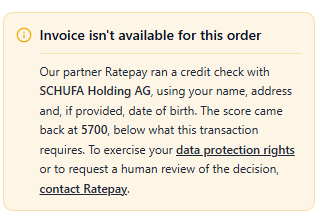
Before continuing, check that:
- The full message, with working links, appears in the buyer or staff result view
- Other payment methods stay available
- A declined transaction can't be processed as an accepted order.
No action needed. Continue your normal order process.
When you capture the transaction, Ratepay sends the Credit Contract Information to the buyer. If the amount increases later, Ratepay provides any updated credit information. There is no new SECCI generation request or token after checkout.
Before going live, run the test scenarios in the integration environment.